Your first plan, one step at a time.
A visual guide to choosing model prices, understanding your estimate, and keeping a plan you can revisit.
The walkthrough uses a support chatbot with 1,000 tasks per month. Usage is illustrative, not measured traffic. Screenshots show the real website and catalog prices captured on 30 October 2026; prices and available models may change.
Read a step, try it in the planner, then come back. Screenshots open at full size. Walkthroughs play only when you choose; every action is also explained in text.
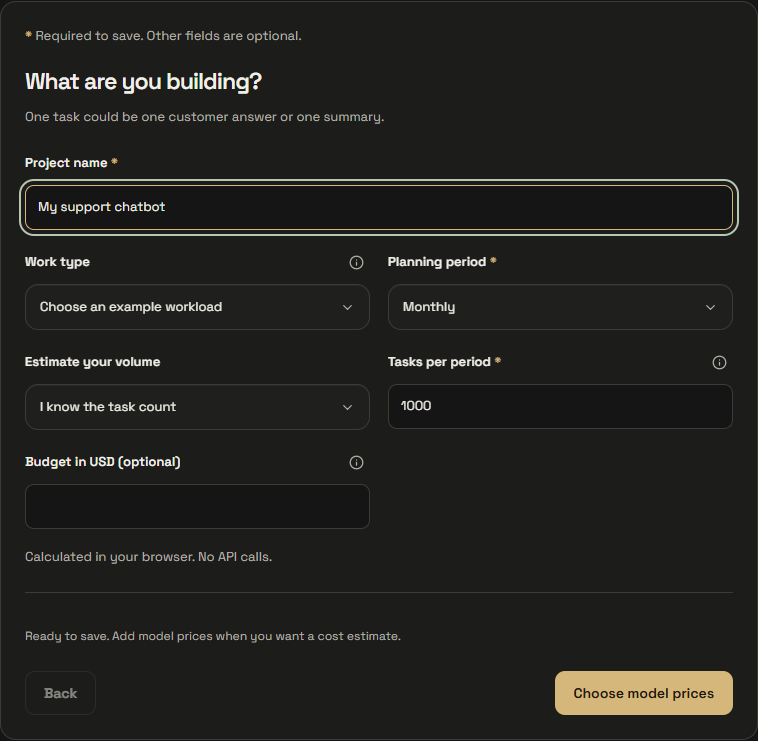
Start with your workload
One task means one useful outcome, such as answering a customer question.
- Open Plan. You can use the planner without an account or an inference API key.
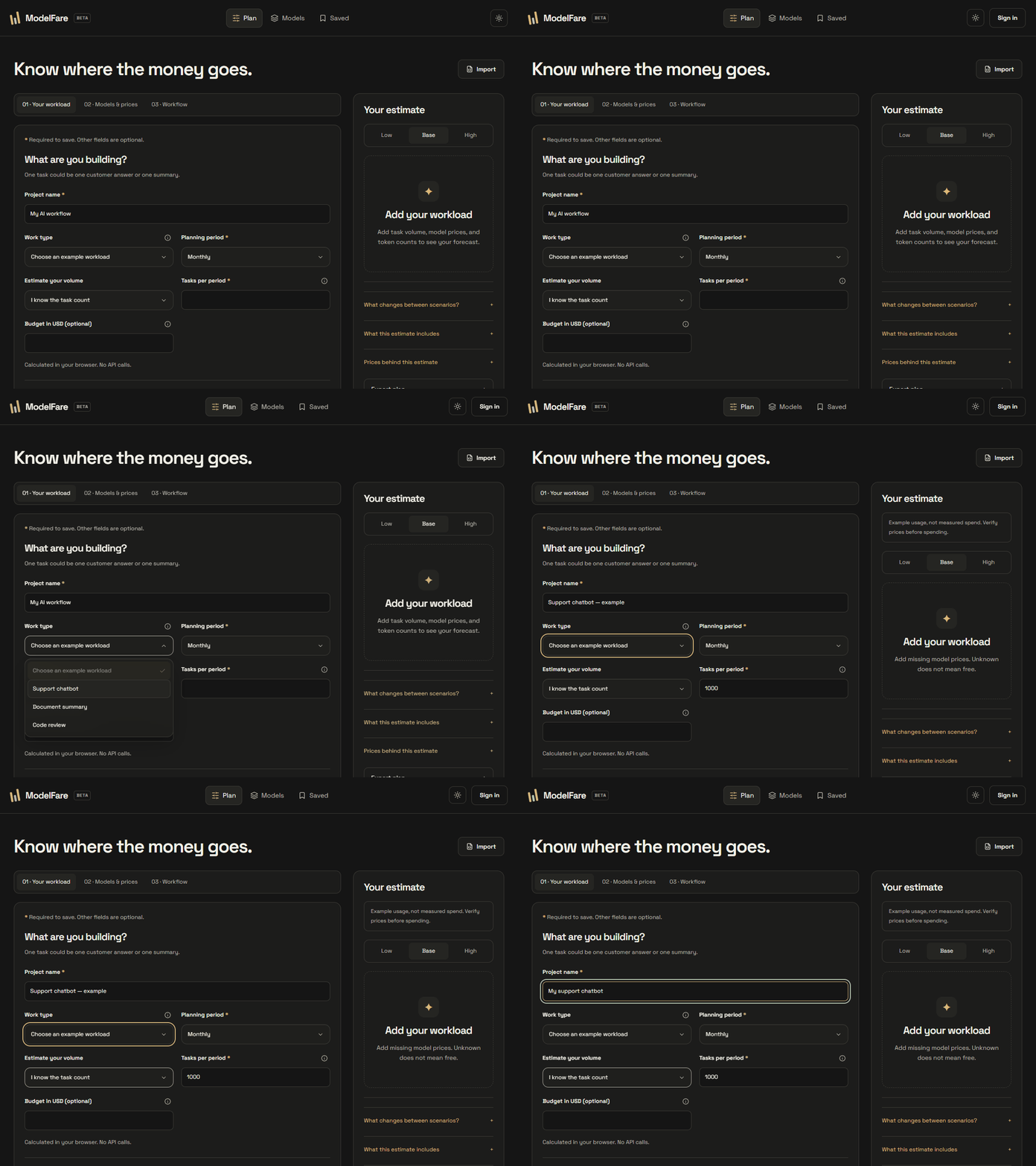
- Under Work type, choose Support chatbot for an editable starting point, or keep the blank plan.
- Name your project, choose Monthly or One-time project, and enter Tasks per period. You can also calculate volume with Users × tasks per user.
- Replace the example's 1,000 monthly tasks with your expected usage. A budget is optional.
An example supplies usage assumptions, not provider prices or proof of model quality. Choosing another example can replace your draft; save important edits first.
Choose a model and its price
A model and the provider serving it are a pair. Compare the price of the exact pair you intend to use.
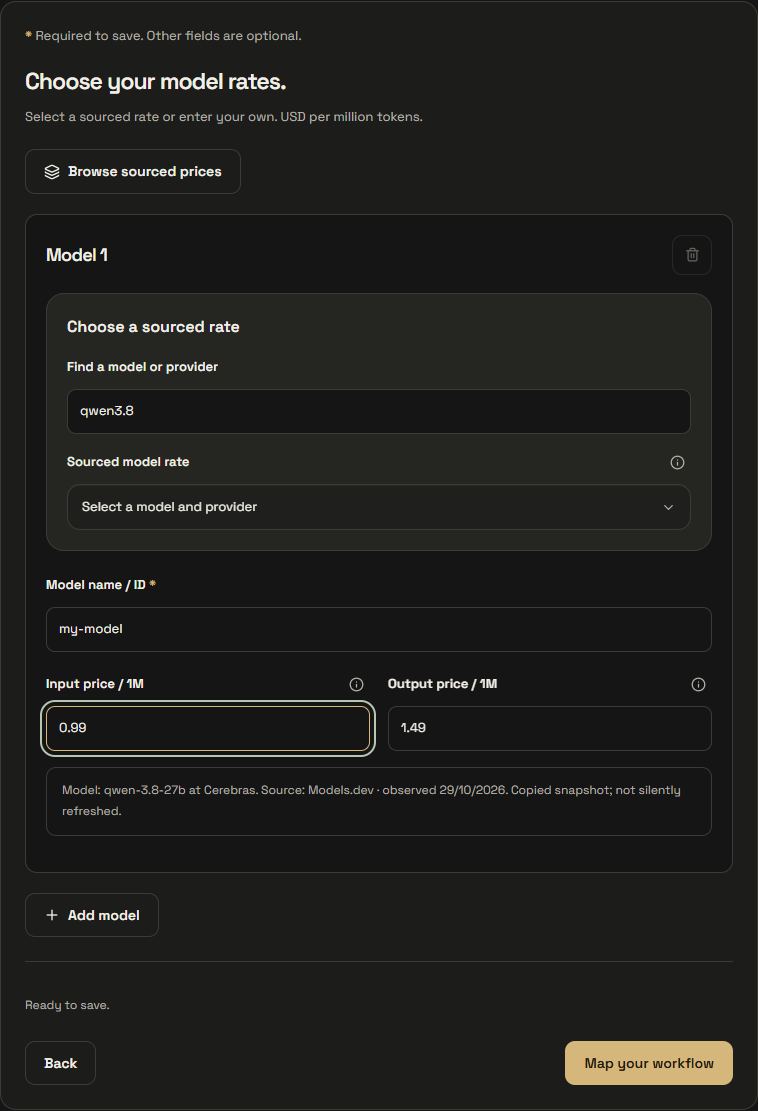
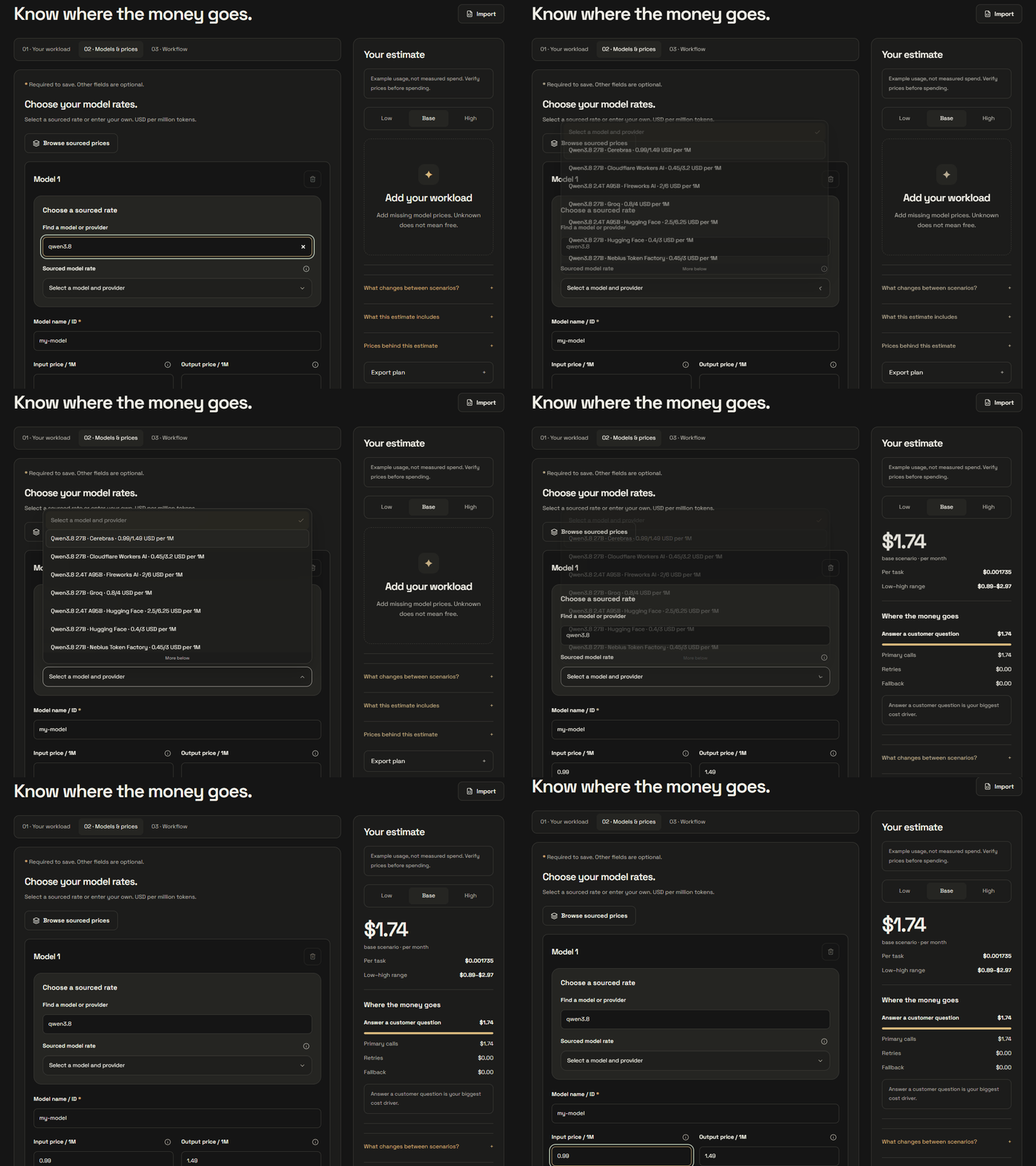
- Open Models & prices. Search in Find a model or provider, then select a Sourced model rate.
- Check both Input price / 1M and Output price / 1M. They are USD per one million tokens, not per request.
- Use Browse sourced prices to compare offers and follow a provider link. You may enter verified rates manually instead.
“Copied snapshot; not silently refreshed” is an information notice. The plan keeps the selected prices until you choose to update them. “Observed” records when ModelFare fetched the source catalog, not when the provider changed its prices. Models.dev is a community source; confirm important budgets against the provider.
Describe the calls behind one task
A task may need one model call or several stages. Include the work that actually happens.
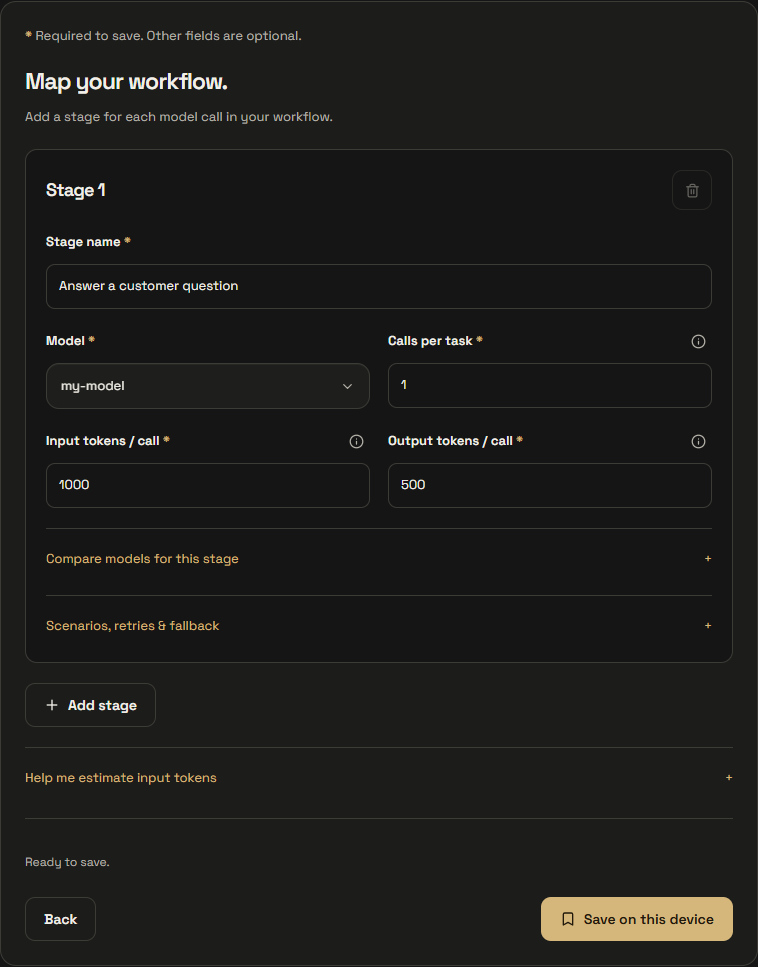
- Open Workflow. Give each stage a name, choose its model, and set Calls per task.
- Enter Input tokens / call and Output tokens / call. Input includes instructions, history, documents and tool results sent with that call.
- Use Add stage when another step, such as a separate review, makes another model call.
- Help me estimate input tokens can turn a representative text sample into a rough local assumption. Select its target stage and click Use this assumption.
The text helper estimates characters ÷ 4. It fills input tokens only. Set output tokens separately, and include any context missing from your sample. It is approximate across languages and tokenizers; pasted text is processed locally.
Read the estimate without overreading it
The number is a forecast from your inputs. It is not a bill, a benchmark, or a savings guarantee.
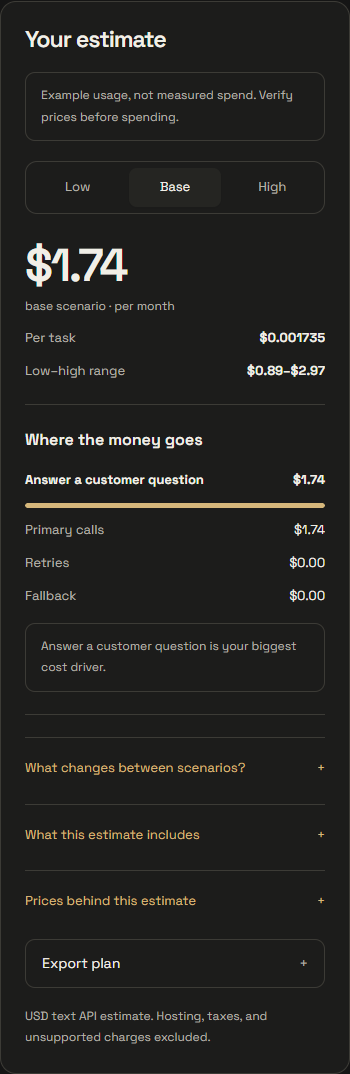
- Your estimate updates as you edit. Low, Base and High select different token assumptions.
- Open Scenarios, retries & fallback in a stage to edit those assumptions. Blank low/high token values use the base value.
- For retries, 0.1 means a 10% retry probability. Maximum attempts includes the first call. A fallback represents one additional call at its escalation probability.
- Read Where the money goes for primary calls, retries and fallback costs. Review What this estimate includes and Prices behind this estimate.
Low/base/high are scenarios, not confidence intervals. The estimate covers supported text-model API charges; hosting, storage, taxes, external tools and unsupported pricing rules are excluded. Unknown prices never mean free.
Save without getting stuck
An asterisk marks required fields. The checklist tells you exactly what is still missing.
- Look above the save controls for Complete … required fields to save.
- Click a missing-field button to open the right step and focus that input. Fill every remaining required field.
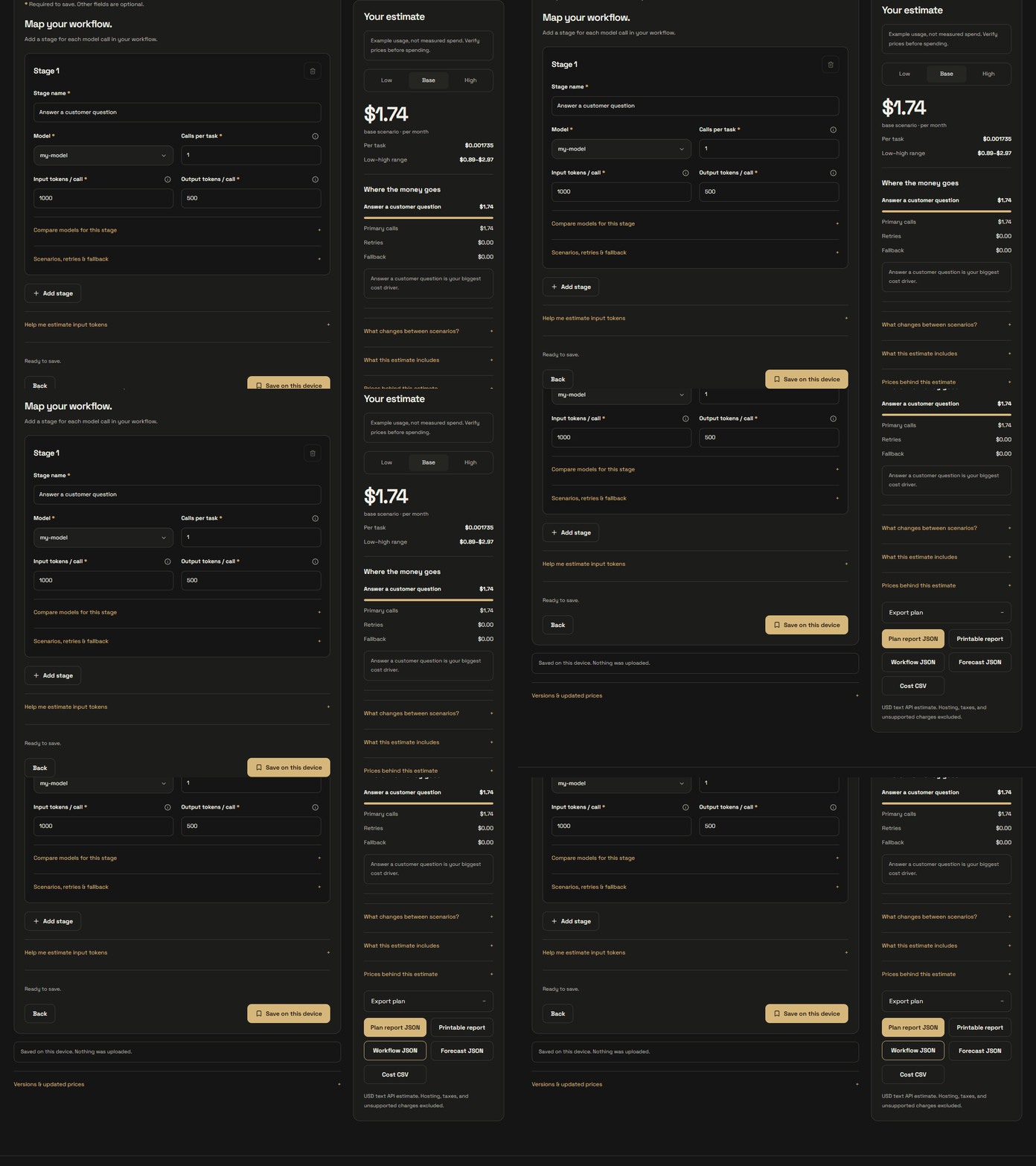
- At the Workflow step, select Save on this device. Look for Saved on this device. Nothing was uploaded.
- Return to Saved in the navigation to reopen your plan. Save again after making changes.
A blank price can be saved as unknown, but cannot produce a complete estimate. Invalid numbers still block saving and show a reason. Device saves stay in that browser; clearing site data or using a different device will not preserve them. Export a copy for portability.

Export a copy you can share
Use an editable file for your next planning session, or a readable report for a review.
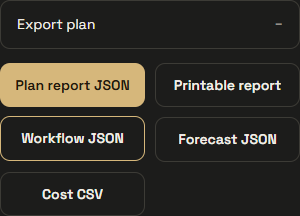
- Open Export plan beneath the estimate.
- Choose Workflow JSON for the editable inputs. Import it later using Import at the top of the planner.
- Choose Plan report JSON for the forecast and documented assumptions, Printable report for a readable HTML report, or Cost CSV for a spreadsheet breakdown.
- Forecast JSON contains calculated results. A complete, valid estimate is needed for forecast and report exports; Workflow JSON can retain unknown prices.
Downloads contain your plan information. Review project names and assumptions before sharing them. Exporting does not publish a public post or upload your plan to another user.
Revisit prices without losing your baseline
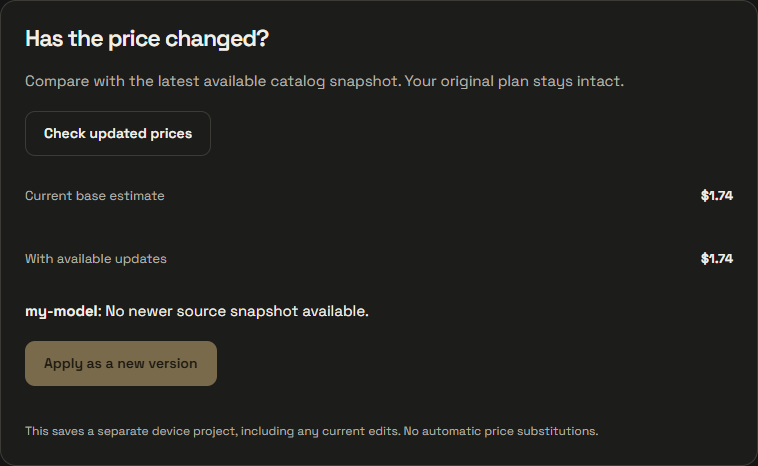
The catalog can change while a saved plan keeps its original assumptions.
- Open Versions & updated prices beneath the planner.
- Click Check updated prices. Compare Current base estimate with With available updates and read the per-model notes.
- When an eligible update is available and the estimate is complete, choose Apply as a new version. This saves a separate device project.
- No newer source snapshot available simply means there is nothing newer in the published catalog. Manually edited rates are retained.
This checks ModelFare's latest published catalog, not a live provider quote. Refreshes are scheduled every six hours and can be delayed. A newer retrieval can confirm unchanged rates. Stale, missing or conditional offers are not silently substituted.
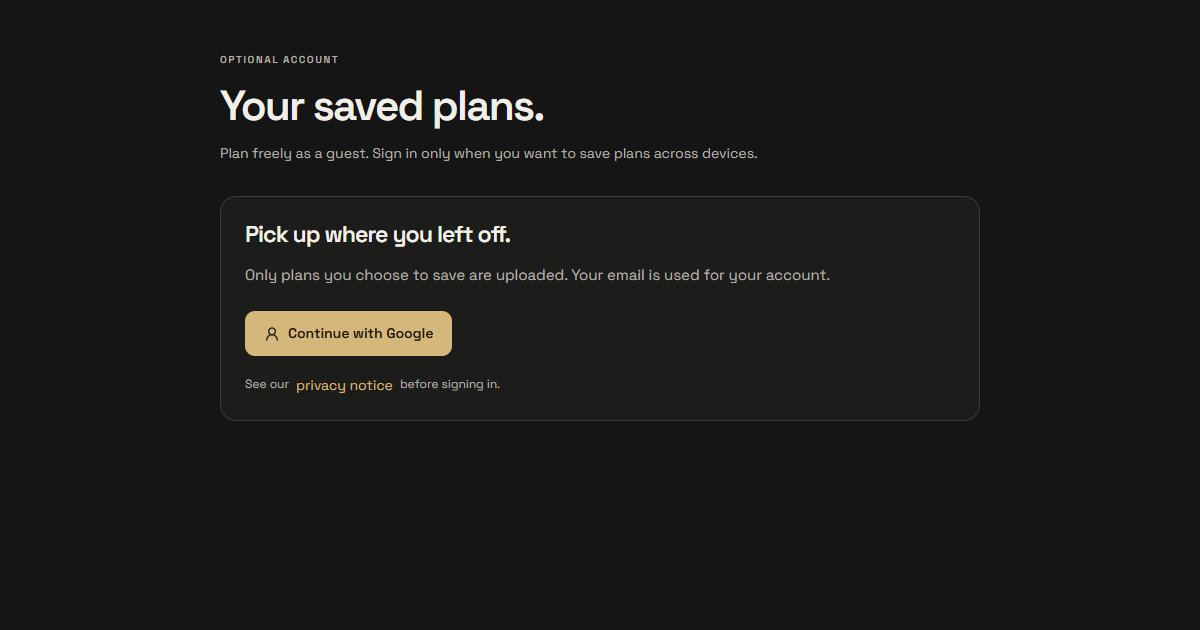
Use an account only when you need one
Guest planning and device saving remain available without signing in.
- For private cloud saving, open Sign in and choose Continue with Google. Complete Google's screen and return to ModelFare.
- Review and accept the current terms when asked, then use Save privately to account for a selected plan.
- To leave, open Your account and use Delete account and cloud data. Follow the fresh-sign-in and DELETE confirmation prompts.
- Device copies are separate. Select the device-data deletion option if you also want to remove those copies from the current browser.
Google sign-in is the enabled login method at publication. Email/password registration is not available yet. Accounts process authentication details and explicitly saved plans; this is not a zero-data-collection service. Deletion removes active account data, while provider backups/logs and copies you downloaded have separate retention.
A few words, explained.
- Task
- One outcome for a user, such as a customer answer. A task can contain multiple model calls.
- Token
- A unit of text a model processes. Tokens are not the same as words; counts vary by model and language.
- Input / output
- Input is what the model receives. Output is what it produces. Providers can charge different rates for each.
- Retry / fallback
- A retry repeats an attempt. A fallback adds a call to another configured model when escalation occurs.
- Snapshot
- A recorded set of prices and its source timestamp, kept with a plan so it can be reproduced.
- Cost per success
- Measured evaluation cost divided by successful tasks. The website forecast does not measure task success; use the local CLI for that.
Common questions.
Why is Save disabled?
Check the required-field list first. Task volume, input tokens and output tokens must be filled; other prefilled required fields must remain valid. If nothing is missing, read the validation message. Applying the token helper fills only input tokens.
Why does a selected price say copied snapshot?
The selection worked. That notice explains where the price came from and why it will stay fixed in your plan. Use Check updated prices when you want to compare a newer published snapshot.
Does choosing a model make a paid API call?
No. Website planning uses prices and your assumptions. It does not run inference or charge your model-provider account. Real inference happens only if you separately configure and run the local evaluation CLI.
Does the cheapest model work best for my task?
The forecast cannot tell you that. Test candidate models against your own meaningful checks, then compare task quality and cost per successful result.
Why do my numbers differ from this guide?
These captures use example traffic and the prices available at capture time. Your model, provider, traffic, token assumptions, retries, fallback and later catalog updates can all change the result.
What should I send when asking for help?
Describe the step, the result you expected and the error text. Share a redacted screenshot or export only if needed. Never include provider keys, passwords, login codes, private prompts or another person's data.
From a forecast to a tested decision.
Use the website for assumptions. Use the local CLI for measured task outcomes.
Reproduce the forecast and evaluate real tasks
Export Workflow JSON, install the CLI from the repository, then reproduce the forecast offline:
git clone https://github.com/Ujjansh05/ModelFit.git
cd ModelFit
python -m pip install -e .
modelfit plan --workflow /path/to/workflow.json --output plans/my-feature
This uses the exported prices and assumptions and makes no inference calls. To measure quality separately:
modelfit init my-evaluation
cd my-evaluation
# Configure real providers, numeric prices, credentials and tasks.
modelfit estimate
modelfit run --budget 1.00 --repeats 1
modelfit report
modelfit recommend
Initialization uses deterministic mock models for development. Replace them with real providers before treating results as quality evidence. Real inference consumes provider credits. Review the estimate first; the budget guard uses configured prices and reported usage, not your provider invoice.
Keep meaningful checks unchanged between models. Compare sample count, pass rate, tokens, actual spend and cost per success. Small samples do not establish a reliable ranking. Agent tasks run trusted commands in workspace copies; the sandbox is not a security boundary or network isolation.
CLI documentation